I have had a Miyoo Mini Plus for about a year now, and I was never really happy with it.
Not because of the device. The Miyoo Mini Plus is a wonderful little retro handheld, and Onion is the operating system that makes it even better. Emulators, save states, Wi-Fi, box art, themes: everything is there and everything works.
But Onion is a great system for adults, and the console was meant for my son, who is seven.
Menus, sub-menus, settings, a list of systems with names like GBC and SFC, the emulator’s own menu one button
away. Most of it means nothing to him, and whatever he can reach, he will press. Repeatedly.
What I wanted was simple: he turns it on and sees three or four games. Nothing else. No choices to make besides which game to play. Keep his experience as easy as possible and drop him straight into the game.
So I built KidsOS: Onion with a different start screen.
Turn it on, pick a game, play. Nothing else.
The code is on GitHub and I also presented it on Reddit.
What the kids see
A row of big game pictures.
Left and right to pick one, A to play, MENU to stop. That’s it. No menus, no settings, nothing to read.
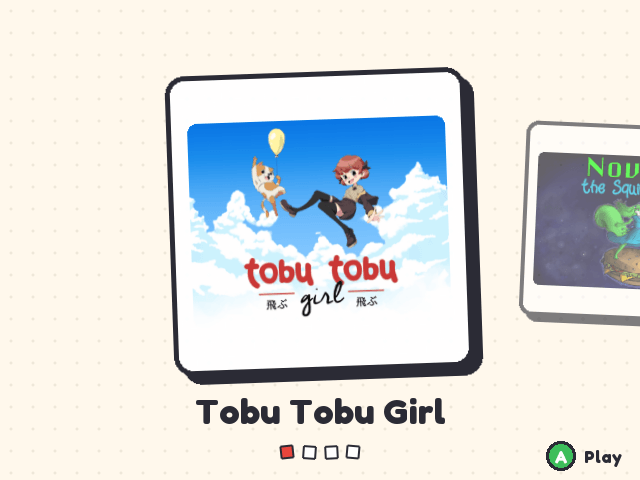
When a game was already played, the console asks a single question, with two pictures instead of words: continue where you left off, or start over.
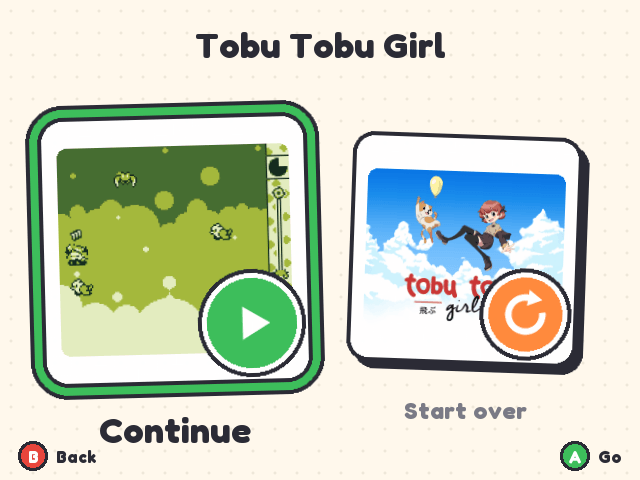
Pressing MENU in a game saves it and goes back to the row. POWER saves too, and switches the console off. At the next power on the game is back where it was. The texts the kid sees are in capitals and in six languages.
What the parents get
You choose the games. The kid’s row is simply Onion’s favourites list. Add a game to the favourites and it shows up. Remove it and it’s gone. No new concept to learn, no new configuration file.
Box art comes by itself. With Wi-Fi on, the console downloads a picture for every game in the row. A kid who can’t read needs pictures, not titles.
A way out. Hold SELECT + START for three seconds and Onion’s normal menu appears. Behind it is plain Onion, so everything you know about Onion still applies.
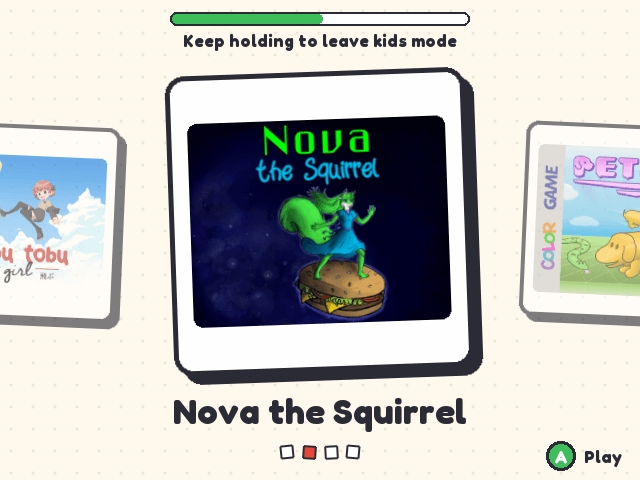
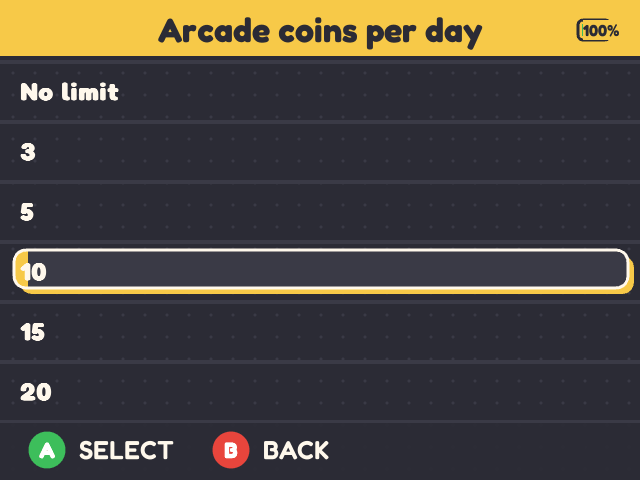
Arcade coins. This is my favourite one. Arcade games get a number of coins per day, ten by default. SELECT inserts one. When they’re used up the game keeps running, but SELECT stops working until the next day. Exactly like a real arcade: a few coins are the budget, when they are gone the game ends, and the kid can still play something else. The better they get, the longer they can play.
No time limit
KidsOS has no “maximum play time per day”, and it won’t get one. This was a deliberate decision.
How long a kid plays is something the kid and the parents agree on. If the console enforces it, the console becomes the one who says stop, and the kid argues with a device instead of learning to stop.
“One more level, then we put it away” is the limit.
The only job of the console is to make putting it away easy: MENU saves, Continue brings it back. No lost progress, no drama.
Standing on the shoulders of Onion
I did not want to fork Onion and maintain a parallel operating system. Onion does all the real work and does it very well. KidsOS adds a small launcher to Onion’s package and a boot hook that puts it in front of Onion’s menu. Onion’s own scripts stay as they are, except that its installer skips the guide and the Package Manager at the first start.
This means Onion keeps working as documented, and a parent who already knows Onion is immediately at home. Going back to plain Onion is a matter of copying the Onion release over the card.
I also left out the parts of Onion that are not meant for kids and would only make the first start longer: ScummVM, the video player, Samba, the Ports collection and a few emulators. Game Boy, Game Boy Color, Game Boy Advance, NES, SNES, Nintendo DS and Neo Geo are ready out of the box. Everything else is one Package Manager away.
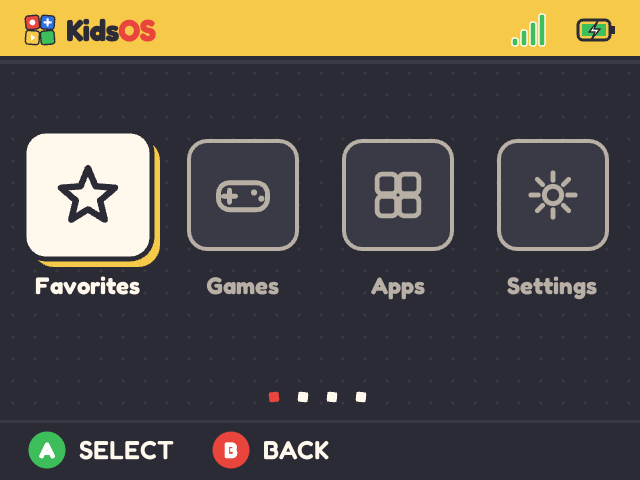
The menu behind SELECT + START comes in the KidsOS colours too.
Installing it
Installing a custom firmware on a handheld usually means formatting cards, showing hidden folders and copying files around. I wanted a parent to be able to do it in ten minutes, so there is an installer. On a Mac or on Linux:
curl -fsSL https://raw.githubusercontent.com/coorasse/onionKidsOS/main/install.sh | sh
On Windows, in PowerShell:
irm https://raw.githubusercontent.com/coorasse/onionKidsOS/main/install.ps1 | iex
It finds the card, asks the language and the Wi-Fi network, downloads the latest release, formats the card and copies everything over. Put the card in the console, turn it on, and two minutes later you are on the kids screen without pressing a single button. Running the same command on a card that already has KidsOS updates it, keeping games, saves and favourites.
All the details are in the README.
Conclusion
KidsOS is free software under the GPL-3.0, like Onion, and has nothing to do with Miyoo or the Onion team. It is a small project, made for small people.
If you have a Miyoo Mini Plus and a kid who wants to play with it, give it a try and let me know how it goes. Issues and pull requests are very welcome!
P.S.
Apparently I will add support for more devices soon!